
Give your landscaping crew a clear job handover
Put the current scope, plans and practical site information in one job brief. A guide to keeping your office and landscaping crew working from the same details.
BrandFlame Studio10 September 2026· 4 min read· AI-assisted
About this guide. BrandFlame’s editorial desk covers website design, enquiry journeys and connected business systems. Sources support factual guidance; worked examples are illustrative unless identified as a documented project.
Meet the team · Research and corrections policy · Try our workflow demo
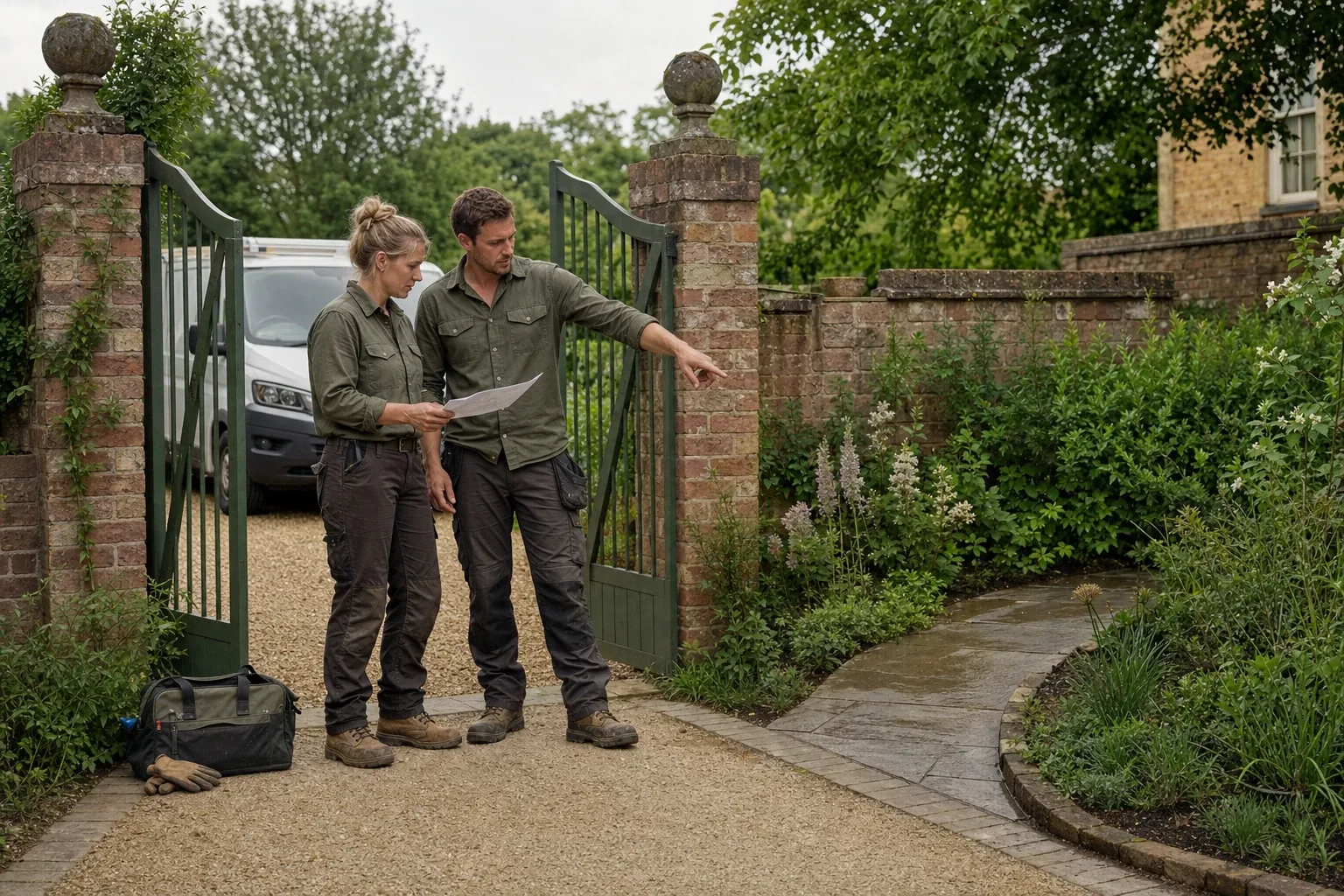
Your landscaping crew arrives at a property with the address and a short note, but the access arrangement sits in an email and the latest planting plan is on someone else’s phone. The office and the team may both have done their part, yet the handover still leaves practical questions unanswered.
A clear job brief brings the current scope, documents, access details and next action together before departure. This guide proposes a small operational workflow for a landscaping business. It does not replace your site assessment, safety procedures or professional judgement.
Define what makes a job ready to hand over
Choose one common type of job and ask the crew what they need to know before travelling. Compare those answers with the information the office currently collects. Start with the missing details that cause follow-up calls.
A useful first job brief could contain:
- A job reference, site address and agreed arrival window.
- A named site contact and the agreed access arrangement.
- The accepted scope, including clear exclusions or unresolved decisions.
- Links to the current plan and relevant site photographs.
- Required materials and the person checking their availability.
- The crew lead, next action and process for raising a question.
Keep sensitive access information restricted to the people who need it. Avoid putting keys, entry codes or personal details in broadly shared calendar titles or general team messages. Choose where such information is held and how access ends when the work is complete.
Keep one current version of the brief
Assign a job reference when the work is agreed, and use it consistently across the customer record, documents and schedule. The crew should be able to open the current brief from the day’s job list without searching several conversations.
Record who last changed the brief and when. If a plan is replaced, label the new version clearly and make it easy to identify the version approved for the work. A file upload by itself should not imply approval to change the scope.
Define a “ready for crew” check. A named person confirms the required information is present, then the crew lead acknowledges the handover. If something material changes afterwards, notify the crew and ask for a fresh acknowledgement rather than relying on them to notice a new attachment.
Start with tools the team can maintain
A shared task system may be enough for the first pilot. Microsoft’s Planner guidance describes assigning a person, setting a due date and adding a checklist, attachments and progress information. Those are useful building blocks for a simple handover when they fit your existing accounts and permissions.
Agree how notifications will be used. Microsoft documents separate Planner and Teams notification behaviour, along with configurable settings. Its notification guidance helps identify which messages staff may receive. Test the actual setup on the devices your team uses.
A notification is not proof that someone has read and understood a change. For a time-sensitive update, specify the direct contact method and the acknowledgement expected. Keep routine updates quieter so staff can identify the changes that need action.
Make the mobile view useful at the site
Put the address, contact, scope and current plan near the top. Give documents descriptive names and check that photographs are large enough to show the detail the crew needs. Test with an actual work phone and account, not only an office administrator’s screen.
Plan for poor reception. Ask your software provider what is available offline and test that behaviour before relying on it. If the team carries an approved downloaded brief, show its version and explain how they check for changes. Do not assume a cached screen contains the latest instructions.
Provide a short way to report a blocker: the job reference, what is different from the brief, a relevant photograph where appropriate, and the decision needed. Send it to the person authorised to answer. Avoid making a long compulsory form the only way to raise an urgent question.
A worked example: an access detail changes overnight
Suppose a landscaping crew is due to prepare a rear garden. The agreed brief says materials can enter through a side gate, but the customer later explains that a delivery is blocking that route. This is a hypothetical scenario.
The office updates the existing job record and marks access as needing a decision. The crew lead receives a direct update before departure. The responsible person checks the available alternative with the customer and confirms whether the planned work can proceed under the business’s normal procedures.
Once the arrangement is agreed, the brief records the current instruction, who confirmed it and the time. The crew acknowledges the change. The old access note remains identifiable as superseded, so it cannot be mistaken for the live plan.
If the question cannot be resolved, the job remains visibly blocked with a named owner. An automation should not mark it ready merely because the scheduled start time has arrived.
Close the loop at the end of the day
Ask the crew to record what was completed, what remains and which decision is needed next. Keep those operational updates separate from any formal acceptance or certification your work requires. Attach useful evidence to the job record so the office can prepare the next customer update from the same information.
Pilot the process with one crew and a small set of comparable jobs. Track missing details found after departure, repeated office calls, unacknowledged changes and time spent updating the brief. Review the reasons behind each interruption before deciding whether another field or notification will help.
Explore our landscaping business solutions for the wider enquiry-to-work journey. A business app becomes useful when it supports the way your office and crew actually hand over work, with a clear owner for each step.
Questions landscapers and garden designers ask
What belongs in a landscaping job brief?
Include the job reference, location, agreed scope, relevant current plans, access arrangements, crew lead and next action. Decide which information needs restricted access and where it should be held.
Is sending a task notification enough to hand over a change?
For changes that matter before departure or during a job, define the acknowledgement you need from the crew lead. A notification being sent does not establish that the new instruction has been read.
What if the team has poor mobile reception?
Check and test your software’s offline behaviour before relying on it. If you provide an approved downloaded brief, show its version and agree how the team checks for changes and reports updates.
Sources
Written with AI assistance and published automatically after checks for structure, source references and links. No human review is required before publication. How we write these guides.
More for landscapers and garden designers
All landscaping guides
Landscaping6 September 2026· 4 min read
Qualifying landscaping enquiries before a site visit
Use this repeatable enquiry script to capture goals, location, timing, access and decision readiness, then route each lead to a clear next step.